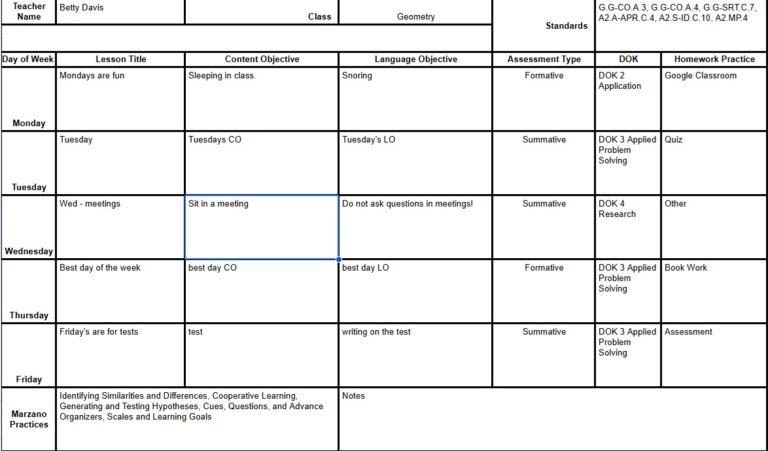
The lesson planning form is a Google Form that will ask you for the details of your plans for the week. It will automatically create a formatted Google Sheet with your information.
Each week you can fill it out for the next set of plans and the sheet will automatically update. An example is shown below.
Step 1:
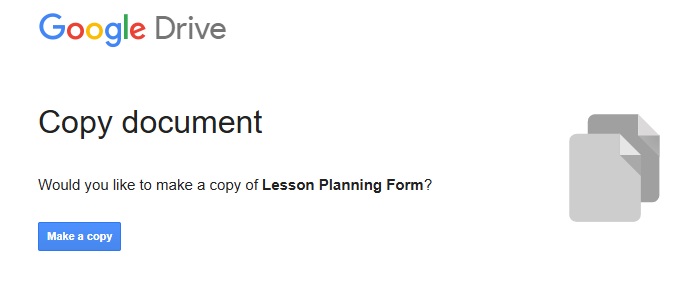
Click the link to create your own copy of the Google Form. The link will open a window like the one shown to the right. Click, “Make a copy.”
Step 2:
Next, if you see the purple button that says Publish in the top right corner, click it.
Step 3:
You will need to both fill out and manage the form (managing is easy, I’ll show you how). That means you need a way to fill it out! That’s what the little paper clip icon will allow you to do.
Click the copy responder link and then paste it in the browser. You can bookmark this so that you can easily access it again in the future and skip steps 1 and 2.
Step 4:
The form will ask you for your name and what class you’re teaching on the first screen.
The next screens are your plans for the week. You’ll fill out the lesson title, content and language objectives, assessment type (formative or summative), DOK level, and the type of homework or assessment given.
When you finish entering the details for the lessons the last screen will prompt you to select “Marzano Practices.” Select as many as you like.
Then, you’ll be asked to select the state standards. Again, select as many as you like.